
By AISEN · Published September 12 2026 Updated November 11 2026
You buy a 144 Hz monitor, start a game, and the counter in the corner says 90 fps. Nothing is slow, exactly. But the motion has a slightly uneven quality, like a sentence read by someone who keeps pausing in odd places. Cap the game at 72 fps and it looks steadier, even though 72 is the smaller number.
That small oddity is the real answer to “does FPS need to match Hz?” No, the two numbers don’t have to be equal. They do have to get along, and how well they get along decides whether a game looks smooth or just reports a big number.
Table of Contents
Two clocks that never talk to each other
Hz is the monitor’s clock. A 144 Hz panel starts a new refresh every 6.94 milliseconds, on schedule, whether or not anything new is waiting for it. FPS is the graphics card’s clock, and it keeps no schedule at all. Each frame is finished when it’s finished. A busy scene takes longer, a quiet corridor takes less, and the gaps between frames wobble constantly.
Picture a train that leaves the station every 6.94 ms exactly. The frames are passengers arriving at random. If a frame isn’t on the platform when the train leaves, it waits for the next one, and the previous passenger rides again. Nearly everything below follows from that picture.
Two things a screen can do with a frame that isn’t on schedule
It waits. The panel shows the previous frame again and the new one turns up at the next refresh. If the waiting is evenly spread, you won’t notice. If it’s uneven, you see judder, which is the faint hitching in the example above.
It cuts in. A monitor doesn’t flash a whole picture at once. It paints the image row by row from the top to the bottom, and that takes close to the entire refresh period. If the graphics card swaps in a new frame while the panel is halfway down, the top half shows the old frame and the bottom half the new one. The seam between them is a tear line.
Here’s a detail that surprises people: tearing isn’t a high-frame-rate problem. Any frame that lands in the middle of a paint can tear, even at 40 fps on a 144 Hz screen, as long as nothing is synchronizing the two. Higher frame rates just put more seams on screen at once, and each one is narrower. So the usual advice that tearing only happens when FPS goes above Hz isn’t quite true.
Why 90 fps on a 144 Hz screen looks uneven
At 144 Hz and 90 fps, each frame deserves 1.6 refreshes. A screen can’t show 1.6 refreshes, so some frames stay up for two refreshes (13.9 ms) and some for one (6.9 ms).
One note on what this example assumes: frames only appear at refresh boundaries, as they do with V-Sync or any other synchronized presentation on a fixed-refresh screen. With V-Sync off, a new frame can land in the middle of a refresh and cut in, so you get a tear line instead of a repeated frame. Tearing and judder are two faces of the same mismatch.
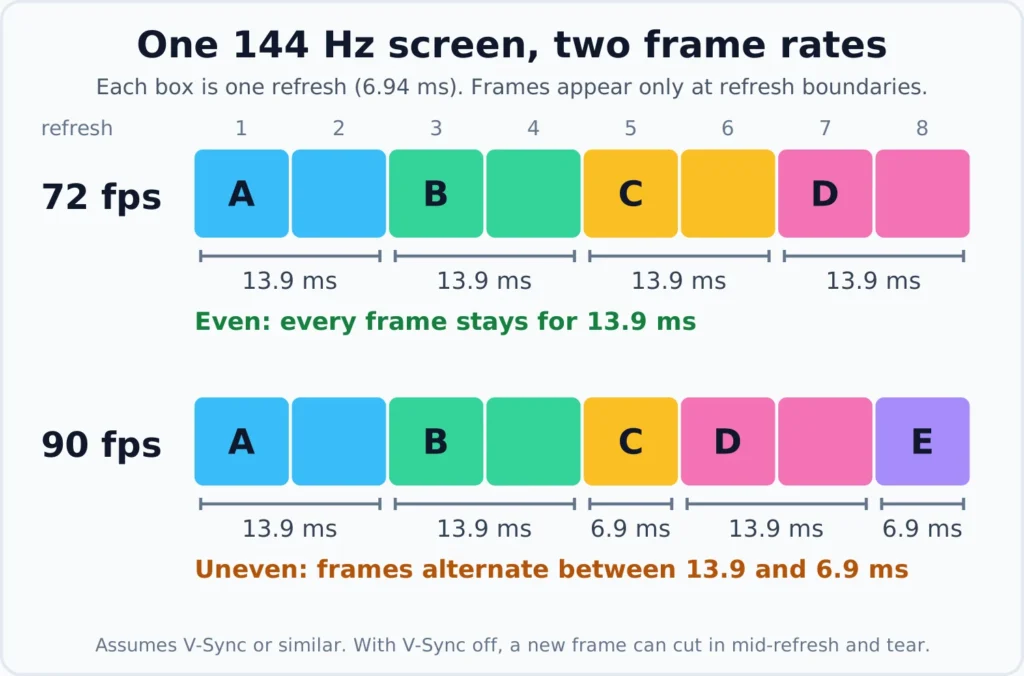
Each box is one refresh of a 144 Hz screen (6.94 ms). At 72 fps every frame gets two boxes. At 90 fps the frames get 2, 2, 1, 2 and 1 boxes, then the pattern repeats.
Frame C in the 90 fps row is on screen for half as long as frame A. The game is producing evenly spaced frames, but the display delivers them unevenly, and your eyes, which track moving objects, pick up the unequal steps. At 72 fps on the same screen every frame stays for exactly two refreshes, so it’s a smaller number and a steadier picture. Here is the same math for a few frame rates on a 144 Hz screen:
| FPS | Refreshes each frame is shown | How it looks |
|---|---|---|
| 144 | 1, 1, 1, 1 | Perfectly even |
| 72 | 2, 2, 2, 2 | Even, at half the smoothness |
| 90 | 2, 2, 1, 2, 1 (repeating) | Uneven |
| 60 | 3, 2, 3, 2, 2 (repeating) | Uneven, frames alternate between 20.8 and 13.9 ms |
So on a fixed refresh rate, frame rates that divide evenly into it have steady pacing. On a 144 Hz screen that means 144, 72, 48 and 36. On 60 Hz it means 60, 30 and 20. Everything in between has a beat to it.
The beat is slow when you’re close. At 59 fps on a 60 Hz screen, one frame per second is shown twice. At 50 fps on 60 Hz, the pattern is one doubled frame followed by four single ones, so you get ten small hitches every second. Blur Busters, which has spent years testing this, reports that 141 fps on a 144 Hz display gives three microstutters per second. When the frame rate sits just under the refresh rate, the number of hitches per second is roughly the gap between the two.
The same arithmetic explains why films hitch on some screens. A 24 fps movie on a 60 Hz display has to alternate between three refreshes and two per frame, a pattern called 3:2 pulldown. On a 120 Hz TV, every film frame can be shown exactly five times, so the unevenness disappears.
So, does FPS need to match Hz?
Not exactly, no. What you want from a fixed refresh rate is for every frame to stay up for the same number of refreshes. A one-to-one match does that. So do clean fractions like half or a third. Anything else gets uneven pacing, and tearing as well unless something synchronizes the two clocks.
There are two ways to synchronize them, and they take opposite approaches.
V-Sync: make the graphics card wait
V-Sync tells the graphics card to hold a finished frame until the panel is ready to begin a new refresh. That kills tear lines. The cost is delay. A finished frame can sit waiting for up to a full refresh before it appears, so there’s more lag between your input and the picture. On older double-buffered setups it could get worse: miss a refresh by a hair and you wait for the next one, which can drop you to half the refresh rate, so 60 fps becomes 30. Triple buffering was invented to avoid that stutter. Modern systems handle this better, but the delay is still the price of the fix.
Variable refresh rate: make the screen follow the GPU
Variable refresh rate (VRR) flips the arrangement. Instead of the frame waiting for the train, the train waits for the frame. The panel starts a refresh when a frame is ready, within the range it supports, say 48 to 144 Hz. A 90 fps game then runs the panel at 90 Hz. No repeated frames, no tear lines and no V-Sync wait.
G-Sync and FreeSync are the two big brand names, and they aren’t the same thing under the hood. AMD’s FreeSync is built on VESA’s open Adaptive-Sync standard, which is part of DisplayPort, and it also works over HDMI. NVIDIA sells two kinds of G-SYNC monitors: ones with a dedicated NVIDIA module inside, and G-SYNC Compatible ones, which are standard variable-refresh displays that NVIDIA has tested and approved. HDMI 2.1 also has its own Variable Refresh Rate feature, which is what consoles and many TVs use.
VRR has edges, though:
- The ceiling. A panel can’t refresh faster than its maximum. Above it, you’re back to tearing with V-Sync off, or V-Sync-style delay with V-Sync on.
- The floor. Below the panel’s minimum refresh rate, a feature called Low Framerate Compensation shows each frame more than once. AMD’s own example is a 60 to 144 Hz display running a 40 fps game by refreshing at 80 Hz.
- The cap. Frame limiters aren’t perfectly precise, and some frames arrive faster than the average. Blur Busters’ G-SYNC 101 testing found that capping a few frames below the maximum, such as 141 on a 144 Hz screen, keeps the panel inside its VRR range. Its tester has suggested a margin closer to 3 to 5 percent at very high refresh rates, and the best number varies with the game and the system, so treat it as a starting point rather than a rule. The setup they tested was on NVIDIA hardware: G-SYNC on, V-Sync on in the NVIDIA driver, V-Sync off in the game. With the frame rate inside the VRR range, that driver V-Sync isn’t adding lag. It only catches the occasional frame that overshoots. On an AMD card, check AMD’s guidance for the equivalent settings.
What a faster monitor really does when your FPS is lower
This is where a lot of explanations, including an earlier version of this post, get it wrong. It’s often said that a 240 Hz monitor reduces motion blur even if your game runs at 100 fps. For the way modern LCD and OLED panels work, that’s not right.
These panels are sample-and-hold. Each frame stays lit until the next one replaces it, and while your eye tracks a moving object, the held image smears across your vision. How long each unique frame stays up sets the blur, and that’s the frame rate. Blur Busters’ founder has pointed out that on a VRR display, 110 fps looks the same on a 110 Hz panel as on a 1000 Hz one. A bigger Hz number doesn’t create frames that aren’t there.
What a faster panel gives you depends on how it’s running:
- On a fixed refresh rate, less waiting. The refresh period is the time it takes to paint the screen and the longest a finished frame can wait for the next refresh. It’s 16.7 ms at 60 Hz, 8.3 ms at 120 Hz, 6.9 ms at 144 Hz, 4.2 ms at 240 Hz and 2.1 ms at 480 Hz. Those figures describe a panel actually running at that refresh rate.
- With VRR, a different picture. A 240 Hz panel showing a 100 fps game doesn’t refresh at 240 Hz. It refreshes whenever a frame is ready, so about every 10 ms, and nothing is waiting for a fixed tick. Blur Busters’ testing indicates that the time a panel takes to paint each refresh stays the same across frame rates inside the VRR range, so a faster panel can still paint each frame sooner, while the gap between frames follows the game.
- Thinner tear lines when V-Sync is off, because each one is on screen for a shorter time.
- A wider VRR range to work with.
On a fixed refresh rate the gains shrink as you climb. Going from 60 to 120 Hz can shave off up to about 8 ms, 120 to 240 about 4 ms more, and 240 to 480 about 2 ms. A higher-Hz monitor is a fine purchase, but it won’t sharpen a 60 fps game.
Frame generation changes the question
Tools like DLSS frame generation insert extra frames between the ones the game really rendered, so the counter can say 240 while the game still reads your mouse at the lower rate it actually renders. A high fps number and a high-fps feel are no longer the same thing. We cover how those versions differ in DLSS versions explained.
Check it on your own screen
You can see all of this in about five minutes.
- Check your refresh rate setting. In Windows, open Settings, then System, then Display, then Advanced display. Plenty of monitors sit at 60 Hz until you change it, whatever the box says.
- Open TestUFO. Its main page compares objects moving at different frame rates side by side, so you can see how blur changes with frame rate. Its menu also has a “Stutters and Tearing” demo and a “Variable Refresh Rate Simulation,” which show the effects above. There’s a frame-skipping test too, which checks that your display is really showing every refresh.
- Try a game with a frame counter. Cap it at 72 fps on a 144 Hz screen, then at 90, and watch a slow camera pan. If you have VRR, turn it off and on and compare.
Starting points for common setups
These are commonly recommended defaults, not universal rules. Your monitor, game and drivers will change what works best.
| Your situation | A sensible starting point | Why |
|---|---|---|
| Fixed refresh rate, game can’t hold the maximum | Cap at an even fraction, like 72 on a 144 Hz screen, with V-Sync on | Even pacing beats a higher but uneven number, and V-Sync keeps frames on refresh boundaries |
| VRR monitor | Turn VRR on. On NVIDIA, try V-Sync on in the driver and off in the game, with a cap a few fps below the maximum | Keeps the panel in its VRR range without V-Sync delay. The best cap varies by system, and AMD users should check AMD’s guidance |
| Competitive shooter, frame rate far above refresh rate, no VRR | V-Sync off and accept some tearing | Avoids V-Sync delay, and a higher-Hz screen helps |
| Console on a TV | Match the console’s output to the TV’s real refresh rate | A 60 Hz TV can’t show 120 fps, whatever the console can produce |
The number in the corner of the screen is the least interesting part of the story. A smooth game depends on frames arriving at the screen at an even rhythm, and the two clocks only need to stay in step, not match.
Also Read: DLSS versions explained
Updated [November 11 2026]: this post was rewritten after a closer look at how refresh rate affects motion blur and tearing. The earlier version said tearing only happens when FPS exceeds Hz, and that a higher-Hz monitor reduces motion blur at any frame rate. Neither is quite right, and this version corrects both. It also now separates G-SYNC modules from G-SYNC Compatible and FreeSync displays, and treats frame caps as starting points.